

Task Automation Tools That Actually Save Time
We tested six popular automation platforms and broke down which ones work best for different team sizes and workflows.
Read ArticleA step-by-step approach to choosing the right calendar tool and organizing it for maximum visibility across all your commitments.
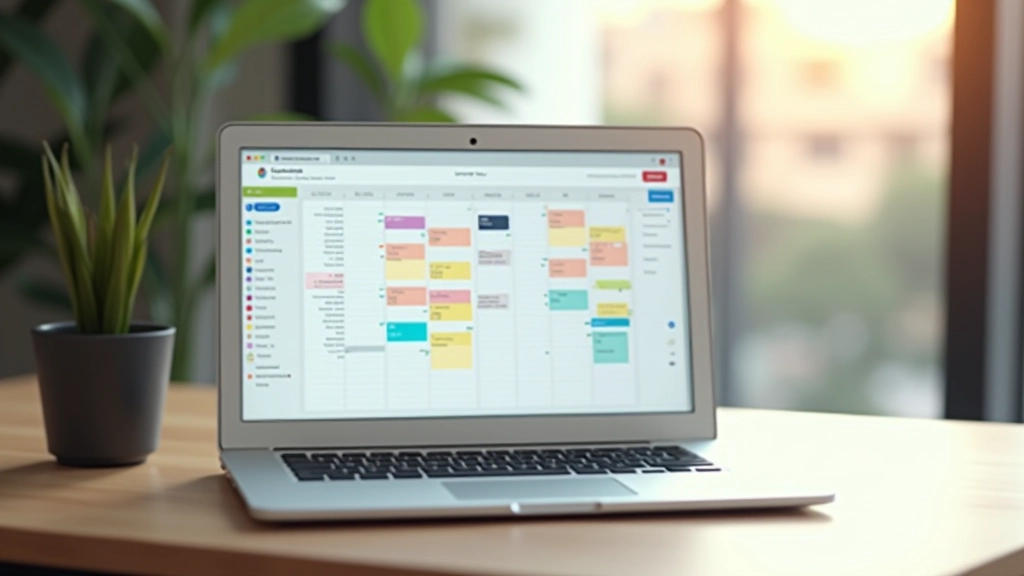

Your calendar isn’t just a place to block off meeting times. It’s the backbone of how you actually spend your hours. When it’s set up properly, you’re not scrambling between apps or missing deadlines. When it’s messy, even the best intentions fall apart.
We’ve seen executives waste hours every week because their calendar system didn’t match how they actually work. The good news? You don’t need expensive software or complicated workflows. You just need the right structure. In the next few minutes, you’ll learn exactly how to build one that sticks.
Most people choose their calendar tool first, then try to fit their work into it. We’re going to flip that — start with how you actually work, then pick the tool that supports it.
You’re probably thinking Google Calendar, Outlook, or Apple Calendar. That’s a solid starting point. The truth is, for most people in corporate Malaysia, these three cover 90% of what you need. They sync across devices, they integrate with email, and they’re not going to surprise you with hidden limitations.
But here’s where people stumble. They pick a tool because their company uses it, not because it matches their actual workflow. Before you decide, ask yourself: Do I need to share calendars with my team? Am I managing multiple time zones? Do I want notifications on my phone, or just desktop alerts?
Once you’ve answered those, the choice becomes obvious. If you’re coordinating across a team in different cities, you’ll want something with strong sharing features and timezone displays. If you’re solo, a simpler tool works fine. Don’t overthink this part — the calendar tool itself matters less than how you organize it.


This is where your calendar goes from functional to actually useful. Colors aren’t decoration — they’re a visual language that your brain processes instantly. You glance at your week and immediately see what type of time you’ve got.
Here’s a system that works. Use 5-6 colors maximum, or you’ll lose the benefit. We recommend: meetings in blue, deep work time in green, personal commitments in purple, administrative tasks in yellow, and client time in red. Don’t just pick colors randomly — make them mean something consistent every single day.
The real trick? Apply these colors immediately when you create the event, not after. Most people create an event in a rush and forget to color-code it. By then it’s lost in the noise. Make it automatic — when you block time, you color it. Takes three seconds, saves you hours of confusion over the month.
Here’s where most people’s calendars collapse. They schedule every hour of the day, forgetting that real work requires buffer time. You can’t go from a video call straight into deep work. Your brain needs a transition.
Start with this rule: Never schedule more than 6 hours of meetings in a single day. Sounds generous until you realize that 6 hours of meetings means only 2 hours for actual work, email, and thinking. That’s tight. But that’s reality for most executives in KL.
Build in 15-minute buffers between back-to-back meetings. Not for meetings to run over — for you to breathe. Check your messages. Make a note about what you just discussed. These 15-minute gaps are where your calendar actually becomes functional instead of a torture device.

Your calendar only works if it’s actually with you. That means it needs to be on your phone, your laptop, your tablet — everywhere you might need to check it. Most calendar apps handle this automatically now, but you’ve got to set it up right the first time.
Turn on notifications for your phone, but be selective. You don’t need a buzz for every meeting. You do need reminders for the important ones. Set reminders for 15 minutes before external meetings — enough time to grab coffee and find the conference room. For internal standups, a 5-minute heads-up is usually enough.
One critical thing: Make sure your work calendar syncs with your personal one, or at least they’re visible in the same view. We’ve seen executives miss their kid’s school event because it wasn’t in the same app as their work schedule. Your calendar needs to show the whole picture of your life, not just the corporate stuff.
Your calendar system won’t be perfect on day one. That’s fine. What matters is that you actually maintain it. Every Sunday evening — or whenever you plan your week — spend 10 minutes looking at what’s coming.
Check for conflicts. Look for weeks that are overloaded. Notice if you’re getting enough deep work time, or if meetings are crowding out the stuff that actually matters. This weekly review is where you catch problems before they become disasters.
You’ll also spot patterns. Maybe you notice that Tuesdays are always crazy, or that Friday afternoons get hijacked by unplanned requests. Once you see the pattern, you can adjust. Block Friday afternoons for focused work. Schedule fewer meetings on Tuesdays. Small tweaks compound.

This guide provides educational information about digital calendar setup and workflow organization. The strategies described are based on common practices and may need adjustment depending on your specific role, industry, and personal preferences. Calendar tools and their features evolve frequently, so we recommend checking your specific application’s documentation for the most current features and capabilities. Your organization may have specific calendar policies or requirements — always consult with your IT department or manager before implementing significant changes to your scheduling system.
Getting your digital calendar system right isn’t about rigid perfection. It’s about creating a structure that supports how you actually work, not fighting against it every day. The executives who’ve mastered this aren’t more disciplined than you — they’ve just removed the friction from their planning process.
Start with the tool you already have. Don’t buy something new thinking it’ll magically fix things. Color-code your events this week. Block realistic time for actual work. Sync it across your devices. Review it once a week. That’s it. Those five steps are the foundation.
Give it two weeks before you judge whether it’s working. Your first week will be messy — you’re building new habits. By week three, you’ll notice something different. You won’t be scrambling as much. You’ll actually have time for the work that matters. That’s the whole point.